Bedrock Skin Maker from Your Photo
A Bedrock skin maker starts with your photo and ends with a skin PNG you can add on a supported device. Photo2Skin offers Classic, Cartoon, Knight and Spooky styles, with a Bedrock edition choice in the photo tool. This guide follows the photo to Minecraft skin Bedrock path from checking your device to finding the right image in Dressing Room.
Open the photo tool with Classic style
Bedrock skin maker: from photo to a usable PNG
Check your platform before choosing a picture. Bedrock on Windows, Android and iOS supports custom skin images; console versions have different limits. Open the photo tool, add your portrait, check the head, face and torso reference boxes, choose a style and select Bedrock. Save the PNG where you can find it from the game’s image picker.
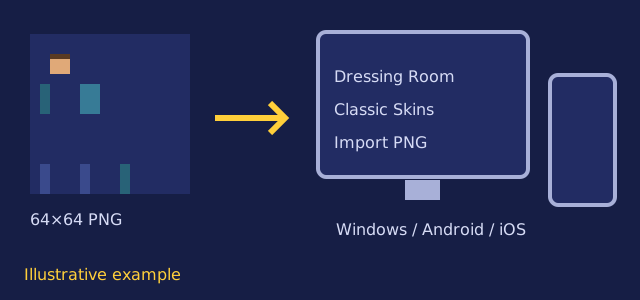
Give the file a recognizable name and keep the original 64×64 dimensions. Do not substitute a screenshot of the result or the starting photograph: the game needs an unfolded skin texture, with body parts in their assigned areas. If you move the image from a computer to a phone, transfer the file itself rather than a compressed chat picture. Check that the copy is still a PNG before continuing.
Windows: use Dressing Room to add the skin
Launch Minecraft for Windows and open Dressing Room from the main menu. Select the character slot you want to change, then find Classic Skins. Open Owned, choose Import and use Choose New Skin to locate your saved PNG. When the game asks which model to use, choose the arm shape matching the texture.
Look over the character before entering a world. If the sleeves appear split or a strip is missing from an arm, check the arm model choice. If you cannot locate the image, revisit the folder where your browser saved it and confirm the file name. The Java launcher’s Skins tab belongs to Java Edition; changing that skin is a separate action from changing the character in Minecraft for Windows.
Android: find the image on your device
On Android, keep the skin PNG in an accessible image or files location. Open Minecraft, tap Dressing Room, select a character and open Classic Skins. In Owned, use Import and Choose New Skin, then select your image through the device picker. Confirm the model and inspect the equipped character.
If the picker does not show the PNG, check the location used by your browser and any image-access permission requested by Minecraft. Choose the original skin file rather than a thumbnail copied from a messaging app. Interface labels can vary with game updates and screen size, so look for the custom image import option within Classic Skins. Return to Dressing Room after selection to confirm that the intended character slot changed.
iOS: select the saved skin image
On iPhone or iPad, save the PNG in a location available to the image picker, such as Photos. Open Minecraft and go to Dressing Room. Select your character, open Classic Skins and Owned, then choose Import and Choose New Skin. Select the skin image and confirm the matching arm shape.
If access to pictures is limited, make sure Minecraft can access the selected skin image. Keep the original picture separate from the finished texture so you do not select the portrait by mistake. A skin texture looks like separated colored rectangles laid out on a square canvas. That unusual appearance is expected: the game wraps those rectangles around the character to form the face, sleeves and other surfaces.
Console limits and using more than one edition
Xbox, PlayStation and Nintendo Switch do not support the same custom PNG import route. Choose their built-in character options or available skin packs. Do not assume that equipping an imported image on a phone makes that image available on your console. Minecraft’s Character Creator FAQ explains the Windows and mobile support and console limitation.
For installation troubleshooting, see how to change your Minecraft skin. If you also play Java, add the PNG separately in that edition. For the portrait step, use the custom skin from photo guide; for recognizable facial features, read face to Minecraft skin.
Frequently asked questions
Can I import a photo-based PNG on Xbox?
Xbox does not support the custom PNG import path used on Windows and mobile. Use the skin options available within the console game.
Is this workflow for older Pocket Edition searches?
Players searching for Pocket Edition usually mean Minecraft on a phone or tablet. On current Android and iOS versions, look for custom image import within Dressing Room and Classic Skins.
Why does the saved image look like scattered rectangles?
The image is an unfolded character texture. The game places each rectangle on a particular head or body surface when you equip it.
Does choosing Bedrock install the skin for me?
No. Choose Bedrock in the photo tool, save the PNG, then add that image yourself in the game’s Dressing Room on a supported device.
Will my Java skin selection also update Bedrock?
Add the skin separately in each edition. Changing a skin through the Java launcher does not perform the Bedrock Dressing Room import.
Return to the Photo2Skin homepage to choose your picture, or check Pricing for credit options.